


The MKT1 MCP adds 40+ ready-to-run marketing skills to Claude, ChatGPT, or your favorite AI tool. Our connector includes skills built on MKT1’s frameworks by the MKT1 team, so you can set your marketing strategy, do research, run campaigns, and audit your work without building every skill yourself.
One click opens Claude and adds the MKT1 MCP as a connector. It takes about 30 seconds.
Need more help? Find detailed instructions for Claude and ChatGPT, plus troubleshooting, below.
Who has access to the MKT1 MCP?
Anyone can install it for free and use it to search and pull insights from MKT1 Newsletter, Emily Kramer’s LinkedIn posts, and the MKT1 Job Board (plus a few bonus free skills!).
Paid MKT1 Newsletter subscribers get access to every skill. Just use the same email you subscribe with when you authenticate the MCP.
Upgrade to unlock full access ➜
How do I use the MKT1 MCP in my marketing workflows?
Give Claude, ChatGPT, or your AI tool these instructions so it takes full advantage of the MKT1 MCP: “For any marketing task, check the MKT1 MCP first. Search MKT1 Newsletter and run a matching MKT1 skill before starting from scratch.”
Claude Chat or Cowork: Paste it into Settings > General > Instructions for Claude.
Claude Code: Ask Claude, “Please add this to my CLAUDE.md,” then paste it.
ChatGPT: Paste it into Settings > Personalization > Custom Instructions.
Start here by prompting to run one of our most popular skills:
Paid subscribers: “Run a homepage audit using the MKT1 MCP.”
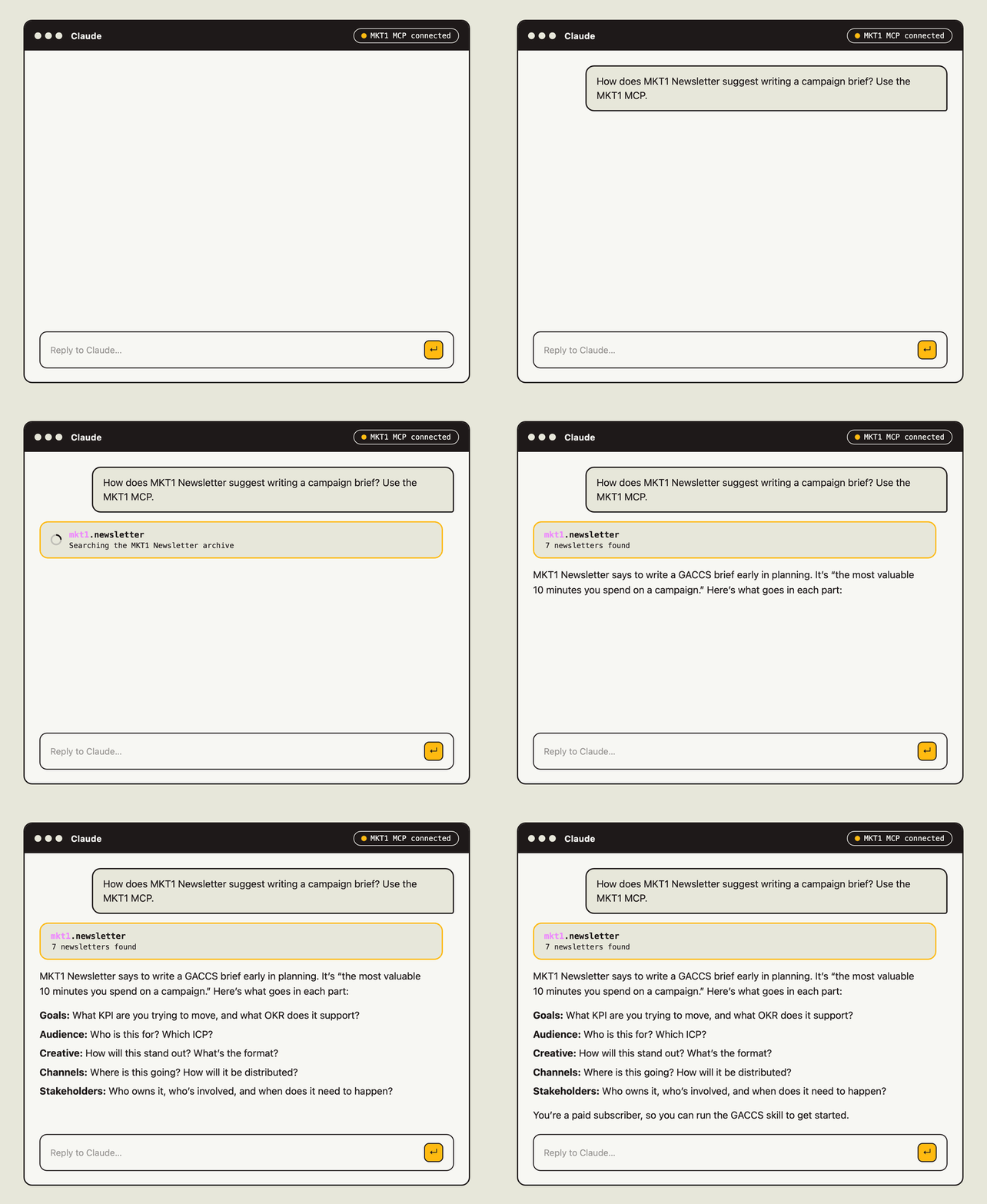
Free subscribers: “How does MKT1 Newsletter suggest writing a campaign brief? Use the MKT1 MCP.”
You’ll get new skills automatically once you install. Run the changelog skill to see what’s new.
Watch a live MCP walkthrough here:

Install instructions by platform
Claude desktop app or web browser
Click Install the MKT1 MCP in Claude. Claude opens with the connector form filled in. Click Add.
If that didn’t work, add it by hand. In Claude, click Customize in the left sidebar, then Connectors. Click the + button at the top and choose Add custom connector. Name it MKT1. For the MCP server URL, paste
https://mcp.mkt1.co/mcp. (That URL only works inside Claude. It goes nowhere in a browser.)The MKT1 MCP Server now shows up in your connectors list as “Not connected.” Click it, then click Connect. A window will open to authenticate your account. Enter the email you use for your MKT1 Newsletter subscription (your Substack login). This does not have to match your Claude account email.
[Optional] Once connected, click on the MKT1 MCP Server in your connectors list and find the Tool permissions dropdown that says “Custom.” Switch it to Always allow. That way Claude can use MKT1 skills without asking your permission every time, which gets old fast.
Claude Code CLI
Run the following command in the terminal:
claude mcp add mkt1-mcp --transport http https://mcp.mkt1.co/mcpThe first time you use the MKT1 MCP, you’ll be asked to enter the email you use for your MKT1 Newsletter subscription (your Substack login). This does not have to match your Claude account email.
Claude Team and Enterprise
On a Team or Enterprise plan, you might need an account admin to add the MKT1 MCP at the company level before you’re able to install it in your account.
Instructions to send to your admin:
On Team plans, Owners and Primary Owners can do this. On Enterprise, anyone with a custom role that can manage Libraries can too.
Go to Organization settings, then Connectors, and click Add.
Hover over Custom and choose Web.
Name it MKT1 and paste
https://mcp.mkt1.co/mcpas the MCP server URL. Click Add.MKT1 will now show up as available in everyone’s connectors list.
Once that step is done, individual users can install the usual way:
In Claude, go to Customize, then Connectors. Click MKT1, then click Connect.
A window will open to authenticate your account. Enter the email you use for your MKT1 Newsletter subscription (your Substack login). This does not need to match your Claude account email.
[Optional] Once connected, click on the MKT1 MCP Server in your connectors list and find the Tool permissions dropdown that says “Custom.” Switch it to Always allow. That way Claude can use MKT1 skills without asking your permission every time, which gets old fast.
ChatGPT (available in beta)
The MKT1 MCP works in ChatGPT as a custom MCP server. OpenAI is still rolling this out by plan. Pro has it; Business, Enterprise, and Edu need an admin to turn on developer mode first, under Workspace Settings, Permissions & Roles, Connected Data. If you don’t see the option, your plan may not have it yet. We tested these steps in October 2026.
In ChatGPT, click Plugins in the sidebar to open the plugin directory.
In the top-right corner, click Add, then choose the option to add a custom MCP server.
Name it MKT1. Description and icon are optional. Under Connection, make sure Server URL is selected, not Tunnel. Paste
https://mcp.mkt1.co/mcp. Under Authentication, leave it set to OAuth. You don’t need the advanced settings.Check the box next to I understand and want to continue, then click Create as a plugin.
A Connect MKT1 window appears. Click Continue to MKT1. A window will open to authenticate your account. Enter the email you use for your MKT1 Newsletter subscription (your Substack login). This doesn’t have to match your ChatGPT account email. Click Connect.
Need more help?
Ask Claude first. Say “MKT1 MCP help” and describe the problem. Support docs are built into the MCP, so Claude can fix most things on its own. When in doubt, disconnecting and reconnecting the MCP usually solves it!
If you still need a human, use the MKT1 MCP support form. We’re a small team, so we can’t answer support requests in Substack comments or DMs.
Fine print: You’ll approve our Terms of Service when you install the MKT1 MCP Server. The short version: Access is included with a paid subscription while we test and improve it, and a paid subscription doesn’t guarantee access forever. Access is for you, not your whole team. You can use what the skills produce in your work. The frameworks, prompts, and tools stay MKT1’s.
Adding to Claude Cowork worked perfectly, but I keep getting an error with Claude Code... anyone else?
This is awesome! I was able to add to my Claude app but not Claude Code. Here's more info (restarting, re-authenticating, reconnecting didn't work):
- Platform: Claude Code CLI (macOS, Darwin 25.3.0)
- Command used: claude mcp add mkt1-mcp --transport sse
https://mkt1-mcp.data-1c2.workers.dev/mcp
Authentication succeeds, but SSE connection fails with a 400 Bad Request
error.